How to Bulk Delete Emails in Gmail

If your Gmail inbox has quietly grown from “I’ll deal with it later” to tens of thousands of messages, the idea of cleaning it can feel overwhelming. The good news: with the right workflow, you can reclaim space and sanity in under an hour—without losing the messages that actually matter. Below is a practical guide that highlights a purpose-built Chrome extension for bulk deletion and then walks through Gmail’s native options and a few power-user tactics.
Solution #1. Bulk Delete Emails in Gmail” (Chrome Extension)
Bulk Delete Emails in Gmail is a chrome exention that automates the exact clicks you’d do by hand—select rows, hit Delete, go to the next results page—only faster and more consistently. You stay in Gmail the whole time; the extension interacts with the standard toolbar (the same “trash can” button you’d press manually).
How to use it (quick start):
-
Open Gmail and the extension’s popup.
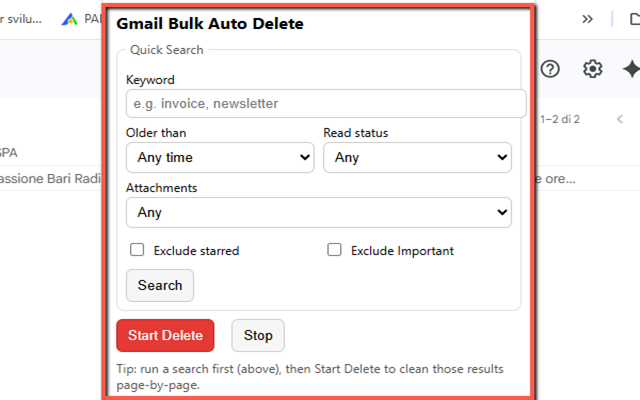
-
(Optional) Set Quick Search filters:
-
Keyword
-
Older than (7 days, 1 month, 1–3 years)
-
Read/Unread
-
With/Without attachments
-
Exclude starred (
-is:starred) -
Exclude important (
-is:important)
-
-
Click Search to load results in Gmail.
-
Click Start Delete. The extension selects all rows on the page, clicks Delete, then navigates to
/p2,/p3, and so on until you hit Stop or results end.
Why it’s efficient:
-
Language-agnostic selectors keep working across Gmail locales.
-
Live progress log shows “Selected N rows”, “Clicked Delete”, and page navigation.
-
Background friendly: it keeps working if you switch tabs (Chrome may slightly throttle timers).
-
Safe by design: deletions go to Trash first; you can still recover them until you empty Trash.
Free vs PRO:
-
Free: hard stop at 500 deletions total (clearly indicated in the popup).
-
PRO: unlimited runs. CLICK HERE to purchase the unlock code for the PRO version
Privacy & permissions:
-
Runs locally in your browser on
mail.google.com/*. -
Uses
storageto remember your settings and Free/PRO status, andtabsto safely stop the runner. -
No data collection, no remote servers.
When to choose the extension:
You need speed and simplicity—especially for big searches (e.g., “older_than:2y is:unread -is:starred -is:important”) where paging manually would be tedious and error-prone.
Native Gmail Ways to Mass-Delete (No Extension Required)
You can do a lot with Gmail’s built-in search and bulk selection. If you prefer staying 100% native, try these patterns.
1) Use powerful search operators, then “Select all conversations that match”
Gmail supports robust operators. Popular examples:
-
Time-based:
older_than:1y,older_than:2y,newer_than:7d -
State:
is:unread,is:read,has:attachment -
Safety exclusions:
-is:starred,-is:important -
By category/label:
category:promotions,label:newsletters -
By sender/domain:
from:example.com,from:(@store.com)
Steps:
-
Run a targeted query, e.g.
older_than:2y category:promotions -is:starred -is:important -
Click the select-all checkbox. Gmail selects the first page.
-
Click the blue link that appears: “Select all conversations that match this search.”
-
Click the Delete icon.
This method is extremely fast—but double-check your query. With the “select all conversations that match” link, you’re deleting every matching email, not just the first page.
2) Bulk delete by category or label
Open a system category (Promotions, Social, Updates) or a label, then delete in bulk:
-
Use the select-all checkbox and, if available, the “Select all conversations” link.
-
For labels you often purge, refine further:
label:Receipts older_than:1y -is:starred -is:important
3) Use filters to prevent future clutter (and optionally nuke past messages)
Create a filter for recurring senders or subjects and choose “Delete it.”
-
During creation, you can “Also apply filter to matching conversations” to clean existing mail from the same pattern.
-
Good for newsletters or automated alerts you no longer need.
4) Empty Trash and Spam intentionally
Deleted mail lives in Trash for up to 30 days before auto-removal. If you’re comfortable with your deletions:
-
Open Trash → choose “Empty Trash now.”
-
Same for Spam if you want to reclaim space quickly.
5) Power-user route: IMAP desktop clients
If you’re processing very large volumes and want local indexing or additional sorting, connect Gmail to a desktop client (Thunderbird, Outlook, Apple Mail). You can:
-
Sort by size, sender, or date.
-
Delete in huge batches.
-
Let the client sync changes back to Gmail.
Be mindful: syncing large deletions can take time, and clients may not mirror Gmail’s categories 1:1.
Safety Checklist Before Any Big Cleanup
-
Add safety exclusions to your query:
-is:starred -is:important. If you rely on Gmail’s “Important” or star system, this preserves priority mail. -
Preview first: skim the first couple pages of results to ensure your search is precise.
-
Archive vs Delete: if the goal is inbox zero but you still want a record, consider Archive instead of Delete.
-
Use Undo/Trash: Gmail shows an Undo toast briefly after delete; and Trash gives you up to 30 days to recover.
-
Consider a backup: for extra peace of mind, export a mailbox copy with Google Takeout before a massive purge.
Which Method Should You Use?
-
Fastest “set-and-forget”: the Bulk Delete Emails in Gmail extension—especially when you want a live log, quick filters, and safe paging.
-
One-shot sweeping removal: native Gmail with “Select all conversations that match” after a carefully crafted query.
-
Ongoing hygiene: Gmail filters that auto-delete predictable clutter (plus unsubscribe where possible).
-
Heavy-duty sorting: an IMAP client if you need local control and advanced views.
Whichever route you choose, the winning strategy is the same: craft a focused search, exclude important/starred items, and move methodically. Do that, and even a five-figure inbox can shrink to something manageable—without losing what matters.