How to save all page links to PDF Files (one PDF per link)
On social networks and on reddit there are many questions like:
-
How to Save Every Link on a Webpage as Individual PDFs?
-
How to Save All Page Links to Separate PDF Files?
-
How to Turn Webpage Links into PDFs in Bulk (One PDF per Link)?
-
How to save all links of a webpage as PDF for offline use?
-
How to Bulk Convert Webpage Links to PDF Documents
- How to Export All Links on a Page as Individual PDF?
This guide shows you how to do exactly that with Batch Webpages & Links to PDF, a Chrome extension built for bulk exporting. You’ll scan a page, select the links you want, and save each as its own PDF—perfect for research packets, documentation, client deliverables, or offline reading. ✨
Why batch-export links to PDF? 📚
Saving links as separate PDFs keeps your archive searchable, portable, and easy to share. Instead of bookmarking a dozen URLs (and losing them later), you’ll keep a folder of PDFs you can annotate, print, or send. It’s especially handy for:
-
News roundups and research sources
-
Product pages, blog posts, and documentation
-
Course materials or reading lists
What you’ll need 🧰
-
Google Chrome (or a Chromium-based browser)
-
The Batch Webpages & Links → PDF extension installed. You can install from this link: https://chromewebstore.google.com/detail/bulk-webpages-links-to-pd/opocalgipnlccajhhcabfojnkhfcljai?pli=1
-
A web page that contains the links you want to capture
Step 1: Open the page and auto-scan 🔍
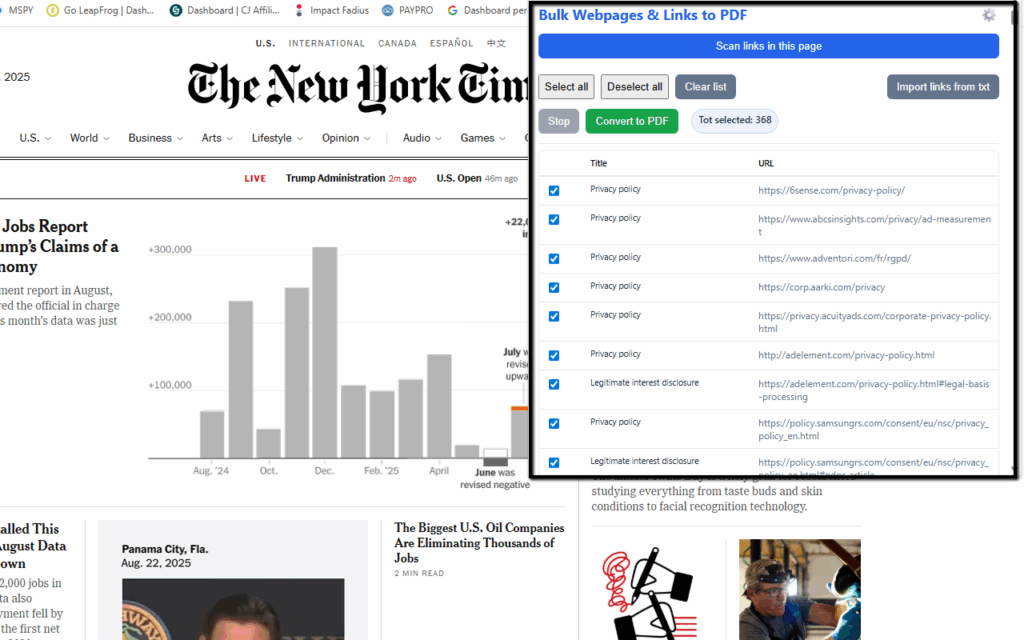
Navigate to the page containing the links (e.g., a news homepage, category page, or table of contents). Click the extension icon. The popup opens and auto-scans the page: it detects links in the main document and—where possible—inside iframes and shadow DOM components. You’ll see a table with:
-
A checkbox (to select/deselect each link)
-
The Title (visible text or a smart fallback)
-
The URL
You can quickly use Select all / Deselect all, and there’s a live badge showing “Tot selected: X”.
Step 2: (Optional) Import links from a .txt file 📥
If you already have a list of URLs, click Import links from txt and choose a plain text file with one URL per line. The links are merged into the table so you can convert everything in one batch—both scanned and imported.
Step 3: Filter out ad/tracking links 🚫
The extension automatically filters common ad/tracker URLs (e.g., DoubleClick and similar networks). This keeps your list clean and focused on real content. You can still review the table and untick anything you don’t need.
Step 4: Convert to PDFs 🖨️
Click Convert to PDF. The extension opens each selected link in the background, prepares the page, and prints it to a separate PDF saved in your Downloads folder. While converting, you’ll see progress (e.g., “Converting (3 of 12)”).
Here is a short video tutorial that shows how this extension works:
You can install this extension from the chrome web store at the following link: https://chromewebstore.google.com/detail/bulk-webpages-links-to-pd/opocalgipnlccajhhcabfojnkhfcljai?pli=1
How the “smart preparation” helps 🧠
Modern pages often lazy-load images and long sections only when you scroll. To ensure complete PDFs, the extension:
-
Scrolls through the page to trigger lazy content
-
Upgrades
data-src/srcsetimages to real sources -
Waits for images and web fonts to finish loading
-
Prints with backgrounds enabled for faithful rendering
This dramatically reduces “missing images” and “cut-off page” issues.
Watermark and licensing 🔒
In demo mode, the extension adds a red “DEMO WATERMARK” to PDFs. To remove it:
-
In the popup’s license box, enter your unlock code.
-
Click Apply.
-
The extension remembers your licensed state and stops watermarking future PDFs.
(If you don’t have a code yet, there’s a Purchase Unlock Code link in the popup.)
Tips for best results 💡
-
Start from overview pages. Category or archive pages often house the links you want to capture.
-
Sanity-check titles. Titles come from visible link text, accessibility labels, image alts, or the URL path. You can sort or deselect as needed.
-
Use PDF settings. Adjust margins, orientation, and scale in the options to fit your use case. Printing with backgrounds can improve fidelity for design-heavy sites.
-
Be logged in. If a link requires authentication (paywalls, dashboards), make sure you’re signed in; the background tab will load the same session.
-
Avoid restricted pages. Chrome internal pages (like
chrome://) and the Web Store aren’t scriptable—run the extension on normal websites.
Troubleshooting 🧩
The PDF seems incomplete.
Most often this means content loads on scroll. The smart warm-up handles this, but some sites load in very small increments; try re-running conversion or increasing scale/margins so more content fits per page.
A link shows the URL as the title.
Some links have no visible text. The extension falls back to labels, image alts, or the last part of the URL. You can still convert—it won’t affect PDF fidelity.
Chrome shows a debugging banner during conversion.
Expected. The extension uses Chrome’s DevTools “print to PDF” under the hood, which triggers a temporary banner.
Wrap-up 🎯
With Batch Webpages & Links → PDF, saving every link on a page as its own PDF is just a couple of clicks. Scan, select, and export—plus TXT imports for pre-made lists, smart page preparation for complete captures, ad-link filtering, and an optional license to remove the watermark. It’s a fast, reliable way to build clean, shareable PDF collections from the modern web.