How to save Gmail conversations as PDF (single or batch Export)
Managing your Gmail inbox efficiently often requires saving important emails or entire conversations for offline reference, legal purposes, or professional reporting. One of the most practical ways to achieve this is by converting your Gmail conversations into PDF files. PDF is universally accepted, portable, and preserves formatting. In this article, we’ll cover how to save Gmail threads to PDF both individually and in bulk, and explore alternative methods as well.
Saving a Single Gmail Conversation as PDF (Manual Method)
Gmail itself does not include a built-in “Save as PDF” option, but you can use your browser’s print function:
-
Open the Gmail conversation you want to save.
-
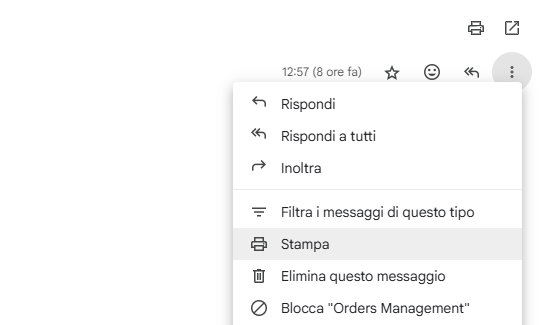
Click the three-dot menu (⋮) in the upper right corner of the message.
-
Choose Print.
-
In the print dialog, select Save as PDF instead of a printer.
-
Confirm and save the file to your computer.
This method is quick but limited to one conversation at a time.
Exporting Multiple Emails at Once (Batch Export)
If you need to convert dozens or even hundreds of conversations, the manual approach becomes impractical. That’s where specialized tools come in.
Chrome Extension: Bulk Gmail to PDF Exporter
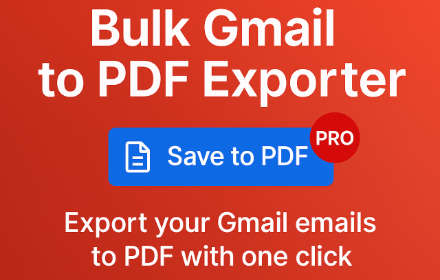
Bulk Gmail to PDF Exporter integrates directly into Gmail with a Save to PDF button. It allows you to:
-
Select multiple conversations in the inbox and export them to separate PDF files.
-
Open a conversation, expand all messages, and save the complete thread.
-
Generate clean, high-quality PDFs that preserve formatting and inline images.
-
Work locally in your browser, without Google API access or sensitive data sharing.
The Bulk Gmail to PDF Exporter extension is specifically designed to address the limitations of Gmail’s manual methods. Once installed from the Chrome Web Store, it adds a clear and accessible Save to PDF button directly inside your Gmail interface, right next to the search bar. This seamless integration makes it feel like a natural Gmail feature rather than an external add-on.
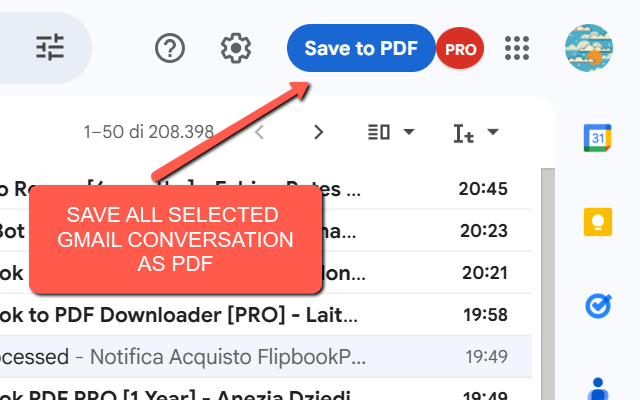
With this extension, you have two main workflows:
-
Batch Mode: Select multiple conversations in your inbox, then click the button. The extension will automatically open each thread, expand all the messages inside, and export them one by one into PDF files. This saves hours compared to manual export, especially if you handle client correspondence, legal threads, or research projects with long email chains.
-
Single Conversation Mode: If you are already reading a conversation, one click on the button is enough to capture the entire thread in a single PDF, including inline images, signatures, and Gmail’s unique conversation flow.
Another major advantage is privacy and security. Unlike cloud-based solutions, the extension performs all processing locally in your browser. It does not connect to Google APIs, nor does it request access to your Gmail account or sensitive data. This means your emails are never uploaded to external servers—everything remains within your control.
The extension also includes a demo vs. PRO mode. In demo mode, exported PDFs include a red watermark, making it suitable for testing or casual use. For professional usage, you can unlock PRO mode with a license code. Once unlocked, the watermark is removed permanently, and your PDFs are clean and ready for business or archiving. The extension provides a dedicated “PRO” badge button that opens a small modal, where you can either insert your unlock code or follow a purchase link.
This balance between simplicity and professionalism makes Bulk Gmail to PDF Exporter attractive not only to individual users but also to businesses, lawyers, HR managers, researchers, and anyone needing reliable records of Gmail conversations. It’s a lightweight, fast, and cost-effective solution compared to enterprise-level archiving systems, while still delivering professional-quality results.
VIDEO TUTORIAL
Alternative Solutions
-
Google Takeout: Export your entire Gmail mailbox in MBOX format, then use third-party software to convert emails to PDF. This is suitable for full backups but cumbersome for individual threads.
-
Desktop Clients (e.g., Outlook, Thunderbird): You can sync Gmail via IMAP and then use the client’s “Save as PDF” or print-to-PDF function. This method requires setup and may not preserve Gmail’s original layout perfectly.
-
Online Converters: Some websites allow you to paste or forward emails to generate PDFs. However, these often raise privacy concerns, since your emails are processed on external servers.
Final Thoughts
If you only need to save one or two conversations occasionally, the manual print-to-PDF method works fine. But for professionals, lawyers, researchers, or anyone who needs frequent exports, a dedicated tool like Bulk Gmail to PDF Exporter saves significant time and ensures consistent results. Combined with its privacy-first approach (local processing, no API keys), it is one of the most convenient and secure ways to archive Gmail conversations.